PDF Spark - Reader & Editor
ApHouseBDProductivity
4.416.00 Reviews
- Version
- 1.0.6
- Installs
- 100.00K
- Age Rating
- Everyone
Screenshots
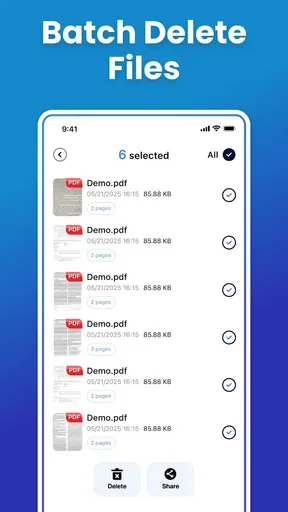
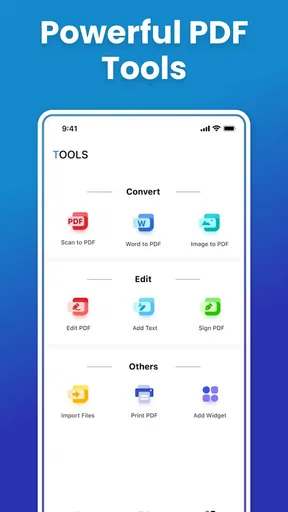
Our Review of PDF Spark - Reader & Editor
 Analysis by Appyee
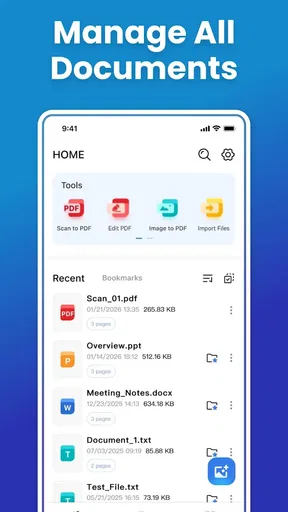
When a PDF arrives in a family group chat, the problem is rarely just opening it. Someone needs to read the details, another person may need to fill in a form, and a third person might ask for a scanned copy. I found PDF Spark - Reader & Editor useful in that kind of shared-device situation because it brings reading, editing, signing, and scanning into one productivity app instead of making me jump between several tools. It is developed by ApHouseBD, available for free, and aimed at Everyone, which makes it easy to consider for ordinary household use.
My first impression was that its appeal is practical rather than flashy. This is not an app I would install for entertainment or elaborate document management. I would install it when a phone or tablet needs to handle everyday PDFs without turning a simple task into a search for the right separate utility. The current version is 1.0.6, and it runs on Android 8.0 or later, so it remains relevant for many older devices that are still being used around the home.
How PDF Spark fits into a shared household workflow
A realistic example is a school permission form sent as a PDF. One parent opens it, reads the instructions, and checks whether the document needs a signature. If the form is already available on the device, the same app can be used to inspect it and work through the next step. Later, another household member may need to scan a paper receipt or send a signed document back to an office. Having one familiar place for those jobs reduces the small amount of friction that often causes delays.
I also see a use for shared tablets. A household tablet may not belong to one person in the same way a phone does, so a PDF tool needs to be simple enough for occasional users. The clear focus on reading, editing, signing, and scanning gives the app an understandable purpose. A teenager can open a homework document, a parent can review a bill, and an older relative can use the device for a form without learning a full office suite.
That convenience has a boundary, though. A shared device is not the same as a shared account or shared workspace. I would treat the app as a local tool for handling documents on the device, not as a replacement for a household filing system. Before passing the tablet to someone else, I would close documents that contain personal information and check where newly scanned files are being saved. The app can help with the task, but good household organization still depends on the people using it.
My most useful habit was separating the workflow into three moments: inspect the document first, make only the necessary changes, and then check the result before sending it. That sounds obvious, but it prevents a common mistake with mobile PDF tools: signing or editing before noticing that the wrong file was opened. On a shared device, where several documents may have similar names, this extra check matters even more.
Starting with the right document
The reading side is the natural entry point. I would use it to confirm that a file is complete before editing, especially when a document has arrived through messaging or email and may have been downloaded more than once. Reading first also helps identify whether the PDF is a form, a scan, or a document that simply needs to be viewed. Those distinctions affect what I expect to do next.
For household use, I recommend a simple naming routine outside the app: rename files with the person, purpose, and month when that information is clear. For example, a document can be easier to find later when its name describes a medical appointment, school form, or utility bill rather than retaining a generic download name. PDF Spark can be the place where the file is opened and handled, but the naming decision is what makes coordination easier after the task is finished.
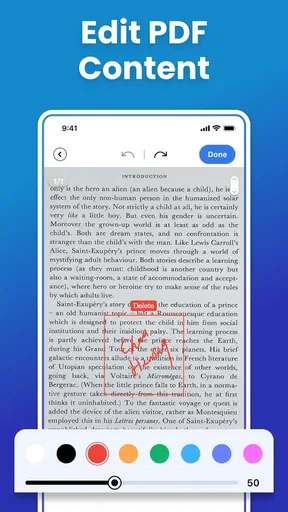
The editing function is most valuable when the change is small and specific. I would not approach it as a complete desktop publishing environment. It makes more sense for correcting or adding information to a PDF workflow than for redesigning a long document. That distinction is important for users who are comparing it with a full office application: the lighter tool may be faster for a quick job, while the larger suite remains better for complex formatting.
Signing is another feature where a careful routine pays off. I would read the entire document before placing a signature, then review the signed copy from beginning to end. On a phone, it is easy to focus on the signature box and overlook a missing date, an unchecked field, or an instruction on a later page. The app can make the signing step convenient, but it does not replace the responsibility to verify what is being signed.
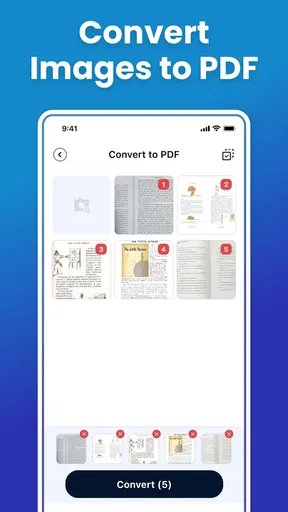
Scanning is particularly useful when a household still receives paper documents. A receipt, letter, or completed form can be turned into a digital document without opening a separate scanner application. My practical tip is to scan on a flat, well-lit surface and check the edges before sharing the result. A scan that looks acceptable in a small preview may cut off a reference number or signature when viewed at full size.
Keeping boundaries clear on a family device
One question I would ask before installing any document app on a shared device is who is allowed to use it and for what. PDF Spark is suitable for general productivity, but the Everyone age rating should not be mistaken for a guarantee that every document is appropriate for every household member. A child may be able to open the app, yet adults should still decide which financial, medical, school, or work files are placed on a shared tablet.
I would also avoid leaving a sensitive document open when handing the device to someone else. This is a basic habit, but it matters more than choosing between similar PDF readers. Close the document, return to a neutral screen, and remove temporary copies when they are no longer needed if the device’s normal file tools allow it. The app provides document functions; it does not turn a communal device into a private workspace.
For families with separate personal phones, I would keep private documents on the relevant person’s device and use the shared tablet for low-risk material such as recipes, public forms, school schedules, or household instructions. That division makes the app easier to trust because it reduces the number of situations in which one person’s private information is exposed simply because someone else needs to read a PDF.
Account boundaries are worth considering as well. I would not assume that installing the same app on several devices creates a synchronized family library. If two people need the same document, I would deliberately share the finished file through the household’s usual method instead of expecting every device to show the same status. That approach avoids confusion over which copy is current, especially after one person edits or signs a document.
Coordinating edits, signatures, and scans
The strongest household workflow is one with a clear owner. One person should be responsible for opening the original, another can review it if necessary, and the final sender should confirm that the correct version is being delivered. PDF Spark supports the practical actions in that sequence, but it does not remove the need for an agreed handoff.
I found it helpful to keep the original and the completed copy distinguishable. If a form needs a signature, I would preserve the unsigned version and create a clearly named completed version rather than repeatedly editing the same file. This is a small but important trade-off: it uses more storage, yet it gives the household a reference copy if a mistake is discovered later.
For a shared school or household task, I would ask the next person to review the actual file rather than relying on a message saying “it is done.” The reviewer should check the name, date, signature, and any required fields. This is where a lightweight PDF app can be better than a complicated workflow: the document can be opened directly and checked without requiring everyone to understand a larger collaboration platform.
On the other hand, PDF Spark is not the first choice I would make for a team that needs simultaneous editing, detailed version history, or a central document repository. A cloud-based office service is usually more appropriate when several people are changing the same document over time. The advantage here is simplicity for individual or household tasks, not advanced collaboration.
Scanning creates its own coordination issue. A paper document may be scanned more than once if nobody knows whether the first copy was saved successfully. I would use a short confirmation message and a recognizable filename after scanning. If the document is going to another person, I would open the saved copy once before sending it. That quick check catches blank scans, crooked pages, and missing corners before they become someone else’s problem.
Age, trust, and the limits of convenience
The Everyone rating makes the app approachable for a broad range of users, but age suitability and document responsibility are separate questions. A young user may be perfectly capable of reading a worksheet or scanning a permission slip, while an adult should handle documents involving contracts, identity details, or payment information. I would explain that distinction clearly rather than treating the age label as a complete household policy.
Trust also depends on expectations. If several people use one device, everyone should know whether a document may be edited, signed, or shared. An accidental edit can be just as disruptive as an intentional one when a file is needed for school or work. I would establish a simple rule: view freely when appropriate, but ask before changing or sending anything that belongs to another person.
For older relatives, the main benefit is having fewer app switches. A single tool for reading, signing, and scanning can be easier to remember than three separate icons. I would still demonstrate the complete process once, including how to return to the document and how to recognize the finished copy. The app may simplify the tools, but confidence comes from practicing the actual household task.
For younger users, I would keep the workflow narrow. Let them open a worksheet or scan a non-sensitive page, but do not place private family records in reach simply because the app is easy to use. This is not a criticism of PDF Spark; it is a reminder that a document reader is often used around information that deserves adult judgment.
The free price is helpful for trying it on a spare device without adding another household expense. Its rating of 4.4 from around 318 ratings suggests that many users find the overall experience useful, while the smaller review volume means I would still judge it through my own workflow rather than treating the score as a guarantee. For me, the important test is whether it handles the documents I actually receive and whether the resulting files are easy to locate and share.
Where it beats familiar alternatives, and where it does not
Compared with using a basic PDF viewer alone, PDF Spark is more useful when the job continues beyond reading. The difference becomes clear when a form needs a signature or a paper page needs to become a digital file. Instead of opening a viewer, finding a separate editor, and then searching for a scanner, I can stay within one productivity-focused app.
Compared with a full office suite, it is appealing for occasional tasks. A large suite may offer more powerful formatting, spreadsheets, presentations, and collaboration, but that breadth can feel unnecessary when I only need to inspect a PDF and complete one step. PDF Spark is the more sensible choice when the document is already in PDF form and the task is focused.
Dedicated scanning apps may still be preferable for people who digitize large piles of paper every week and need specialized scanning routines. Likewise, a professional PDF editor may be a better fit for advanced document production, complex forms, or detailed markup. I would choose this app for everyday convenience, not because it replaces every specialist tool.
There is also a difference between a PDF utility and a cloud storage service. PDF Spark can be part of a document workflow, but I would not use it as the sole answer to household backup, long-term archiving, or multi-person file organization. For those needs, a carefully managed storage service and a clear folder structure matter more than the editing app itself.
Who should install it and who should pass
I would recommend PDF Spark to someone who regularly receives forms, reads downloaded documents, signs occasional paperwork, or needs to scan pages from a phone or shared tablet. It is especially suitable for households that want a straightforward PDF tool without committing to a broad office platform. The fact that it is free makes experimentation easy, and the Everyone rating removes one obvious barrier for general family use.
I would also suggest it for students who mainly work with PDF worksheets and handouts, provided that important submissions are checked after editing or signing. A student can benefit from having the core actions together, but should still keep original files and confirm that the final document opens correctly before sending it to a teacher.
I would skip it if my main requirement were advanced team collaboration, detailed document history, extensive desktop-style formatting, or a large-scale scanning archive. In those cases, a specialized service would likely justify its extra complexity. I would also avoid relying on any shared-device PDF app for highly sensitive records unless the household already has a clear privacy and storage routine.
One practical test is enough to decide. Take a harmless PDF, open it, make a small change, try the signing workflow, and scan a single paper page. Then locate the resulting files and confirm that the copies are understandable. If that sequence feels natural on the device, the app is likely to earn a regular place in the household workflow. If finding or distinguishing the files feels confusing, a more specialized setup may be better.
With over 100K installs, PDF Spark has already reached a meaningful audience, and its focus is easy to understand: it is a compact productivity option for common PDF jobs. I like that its usefulness is tied to real moments rather than elaborate features. A form arrives, a page needs scanning, or a document needs a signature; the app gives me a reasonable place to begin.
My household verdict is positive, with sensible limits. I would keep it on a personal phone or a carefully managed shared tablet for routine documents, and I would pair it with clear file names, deliberate handoffs, and a quick final review. The best reason to use PDF Spark is not that it does everything, but that it gathers the four PDF actions most people occasionally need into one approachable tool. For simple family coordination it is convenient and easy to justify; for private archives or professional collaboration, I would choose a more specialized solution.
Overall, PDF Spark - Reader & Editor is a good fit for readers who want a free, focused way to read, edit, sign, and scan documents on Android devices running version 8.0 or newer. ApHouseBD has positioned it as an everyday utility rather than a heavyweight document office, and that is exactly how I would use it: keep the workflow simple, protect personal boundaries, and let the app handle the routine PDF work.
Verdict
Strengths of PDF Spark - Reader & Editor
- Clean interface makes opening and browsing PDFs straightforward.
- Supports quick document search for finding words or phrases.
- Useful annotation tools help mark important sections.
- Documents can be organized for easier access later.
- Works well for reading PDFs on phones and tablets.
Limitations of PDF Spark - Reader & Editor
- Some advanced editing features may require a paid upgrade.
- Large or image-heavy PDFs can take longer to load.
- OCR accuracy may vary with blurry or unusual document scans.
- Annotation controls can feel limited for professional workflows.
- Privacy depends on how cloud or sharing features handle documents.
Other Releases by ApHouseBD
View All
Swift PDF Reader & Converter
Productivity4.3
Similar Picks in This Category
View All
Google Calendar
Google LLC4.6

Google Drive
Google LLC4.3

Google Assistant
Google LLC3.9

Microsoft OneDrive
Microsoft Corporation4.6

Samsung Calendar
Samsung Electronics Co., Ltd.4.1

Microsoft OneNote: Save Notes
Microsoft Corporation4.6
Frequently Asked Questions
What is PDF Spark - Reader & Editor, and what can I do with it?
PDF Spark - Reader & Editor is designed for opening, reading, organizing, and working with PDF documents on a mobile device. During testing, the app is most useful for everyday tasks such as viewing files, searching for text, navigating between pages, and making basic edits or annotations. Depending on the version and device, available tools may include highlighting, drawing, adding notes, filling forms, signing documents, and sharing completed files.
Can PDF Spark edit existing PDF files or only read them?
The application is more than a basic PDF viewer, but its editing capabilities may depend on the specific tool and subscription level. Users can generally expect features for annotating documents, adding text or marks, highlighting information, and completing certain forms. More advanced changes, such as permanently modifying original paragraphs, rearranging content, converting files, or using OCR, may be limited or require an in-app purchase.
Does PDF Spark - Reader & Editor work offline?
PDF Spark can typically be used offline for reading PDF files that have already been downloaded or imported onto the device. Basic navigation, searching, and many annotation functions should remain available without an internet connection. However, features involving cloud storage, online conversion, account synchronization, document sharing, advertisements, or license verification may require internet access, so offline availability can vary by function.
Is PDF Spark - Reader & Editor free to download and use?
The app may be available as a free download, but users should check the store listing carefully because some tools can be restricted behind premium plans, subscriptions, or one-time purchases. Free access may include reading and basic document handling, while advanced editing, exporting, cloud features, or an ad-free experience could cost extra. Review the pricing screen and trial terms before confirming any purchase.
Is PDF Spark safe for private or confidential documents?
PDF Spark can be convenient for handling personal documents, but users should still be cautious with sensitive files such as identification, contracts, medical records, or financial statements. Check the app’s privacy policy, requested permissions, cloud-storage behavior, and sharing options before importing confidential material. Keep the application updated, use device security, and avoid uploading important documents unless you understand how they are stored and processed.
